Members
Invite colleagues to your workspace, decide what each of them may do, and remove someone who no longer needs access.
Requires: an admin, for everything on this page except reading the member list.
Invite a teammate
- Open the menu under your avatar and choose
Settings, thenMembers. - Press
Invite teammate. - Type the address under
Email, pick aRole—AssemblerorCurator— and tickAdminif they should also manage the workspace. - Press
Send invitation.
A line under Invite teammate then says whether the email went out, with Copy link beneath it so you can send the invitation yourself. The invitation waits under Invited with its Expires date, 14 days after it was sent. Resend replaces the link with a fresh one and the previous one stops working; Revoke cancels the invitation.
The person you invited opens the link, signs in if they are not already, and presses Join followed by the workspace's name.
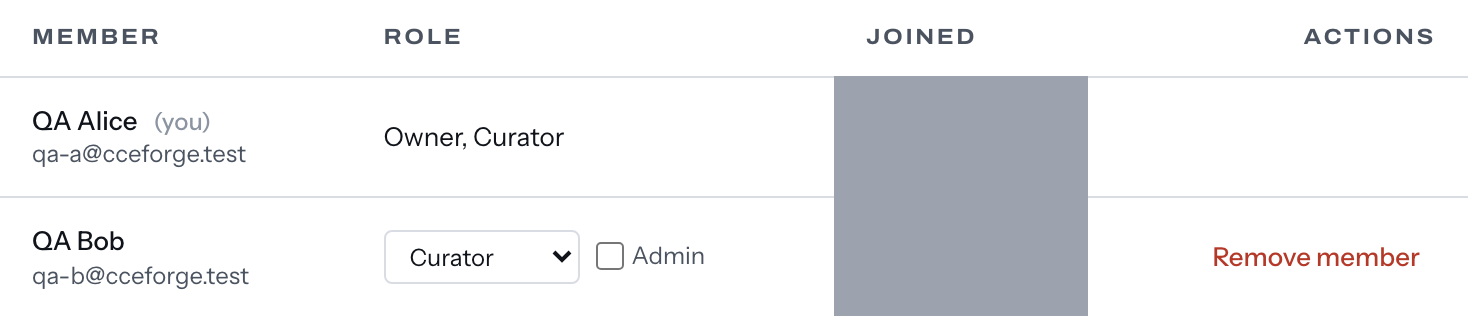
Roles
Every member is an assembler or a curator, and Admin is a separate box that adds to either.
- Assembler — reads the libraries shared with the workspace, and builds, copies and exports documents.
- Curator — everything an assembler does, plus writing to the library: snippets, collections and libraries.
- Admin — added to either role. An admin also writes to the library, invites and removes members, changes roles, sets the default library, archives a library, and saves the settings on
General,ReviewsandLive Answers.
The member who created the workspace is its owner. The Role column reads Owner, Curator, and the database refuses to change that row's role, admin box or paused state, or to delete it: the owner keeps curator and admin and cannot be removed.
Change a role
On a member's row, change the Role list or the Admin box. It saves as you make it. Your own row and the owner's show the role as text, with nothing to change — nobody promotes themselves.
Remove a member
- Press
Remove memberon their row. - Confirm with
Remove memberin the dialog.
That deletes their membership, and nothing else: the snippets and revisions they wrote stay where they are. They can no longer open the workspace. Documents they never shared stay too, readable by nobody — see Export your data.
Every member except the owner also has Leave workspace, at the foot of General.
A paused member
A membership can be paused, which the account menu shows as paused beside your role. A paused member keeps reading, searching, assembling, copying and downloading documents (PDF, DOCX, Markdown and HTML); Google Docs export, library writes, workspace settings and saved field values require an active membership, while their own appearance preferences still save. Nothing of theirs is removed, hidden or degraded. No control in the product pauses a member today.
What a member who is not an admin sees
The same Members table, with no Invite teammate, no Actions column and no Invited list. Workspace settings covers what each of the other tabs lets them change.