Your account
Your avatar opens a menu with who you are signed in as, the workspaces you belong to, Settings and Sign out.
The menu under your avatar
Your avatar is the last control at the right of the bar at the top of every workspace page except the Live Answers tab and an ended call's page, which open without that bar. It is the same size at every width. Press it for:
- your name and your email address, and under them the workspace's plan and your role in it, plus
pausedif your membership is paused; Workspaces, every workspace you belong to with its address, the one you are in marked — shown only when you belong to more than one. Choose one to go to it;Settings, which opens the workspace's settings — see Workspace settings;Sign out, which signs you out on every device and returns you to the sign-in page.
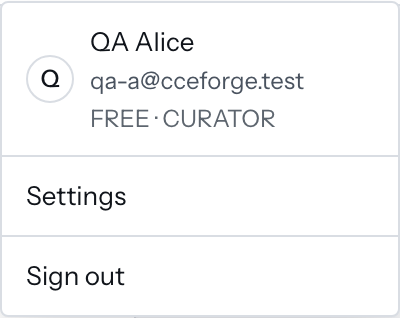
There is no separate workspace switcher: the workspace you are in is the /w/<workspace> address in the URL, and choosing another under Workspaces navigates there.
Change your avatar
- Open
Settings.Your avataris the first block onGeneral, above the workspace's own profile. - Press
Choose imageand pick a PNG, JPEG or WebP file.
Your browser crops the image square and resizes it to 256 × 256 before a byte leaves it. Any member can do this, whatever their role: the avatar is yours, not the workspace's, and it follows you into every workspace you belong to.
Your avatar is your chosen image if you have one; otherwise the picture from the account you signed in with, if it carries one; otherwise the first letter of your name, or of your email address when you have no name. The line under your address in Your avatar names which rule is winning: Your image, From your Google account or Your initial.
Remove photo takes your chosen image away, and the next rule in that order wins. With no chosen image it is present and off, and it says why.
Signing out
Sign out revokes the session on the server, not only in this browser, so every device you are signed in on is signed out with it. You land on the sign-in page, and signing in again is a six-digit code sent to your address — see Sign in.