Export your data
Export takes one document out of CCEForge at a time, in the format you pick.
- Open the document on the canvas.
- Press
Export. It is off, with the reason, while the editor is open or the canvas is empty. - On
Deliver this document, pickCopy,Google Docs,PDF,DOCX,MarkdownorHTML.
PDF and DOCX are on Team and up and Google Docs on Business and up, and a workspace created before they became part of a plan keeps all three (Exporting); Copy, Markdown and HTML are on every plan and carry every byte.
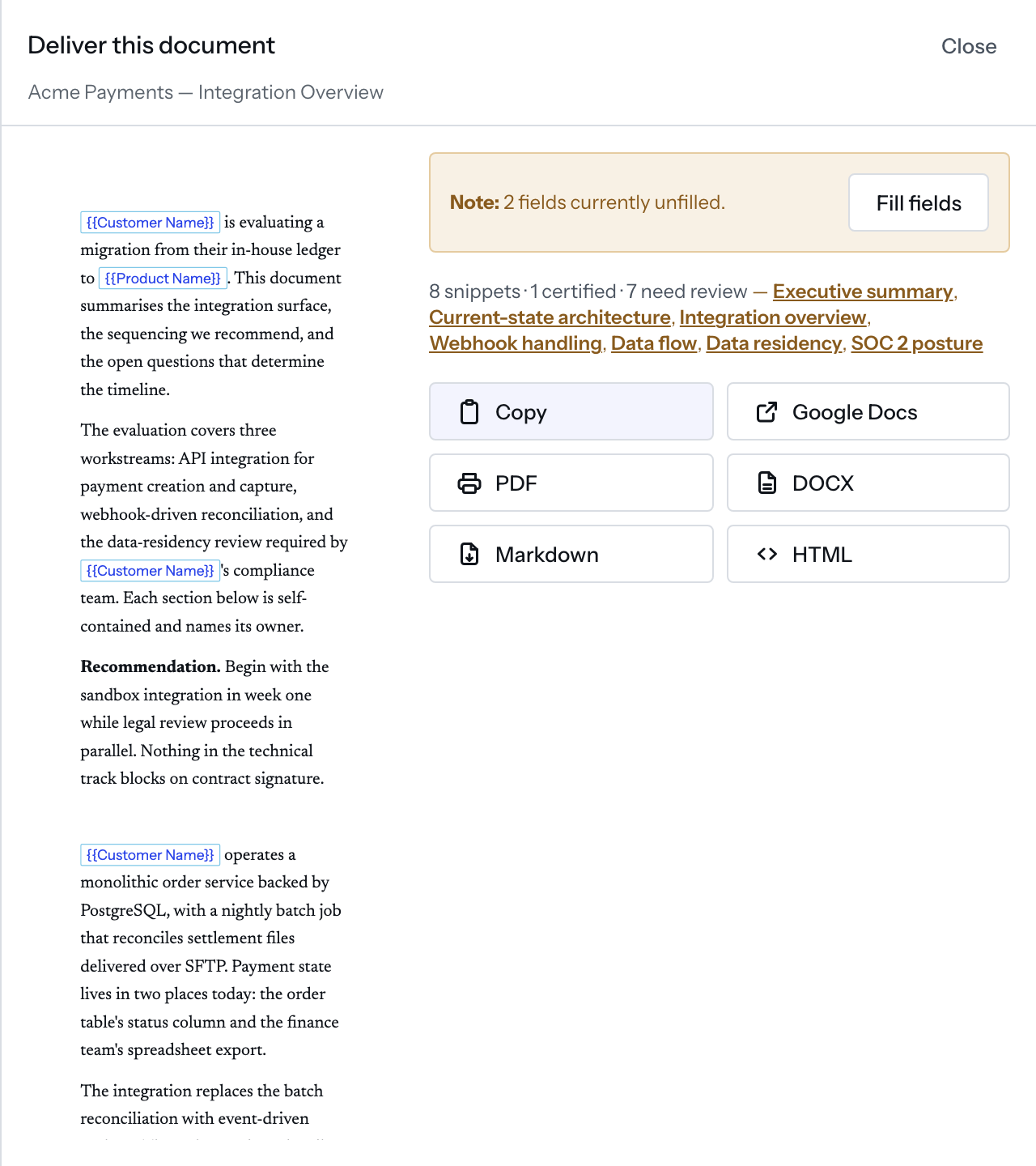
File formats lists the file each one produces; with the editor closed and a row on the canvas, ⌘⇧K and ⌘⇧C copy the document without opening the sheet. CCEForge keeps no copy of what you export; What is stored says what it does keep.
A document carries the values filled in the Fields sheet, and before you pick a format the sheet counts the fields still unfilled and offers Fill fields. Nothing is ever withheld from an export: no ceiling and no lapsed certification stops one.
One document at a time
No control exports a whole library or a whole workspace. To take several documents out, open and export each one.
When a member leaves
Leaving or being removed deletes their membership in the workspace; their account itself stays.
What they wrote in a shared library — snippets, revisions and collections shared with the workspace — stays for everyone, and so do the templates they shared. Their Personal libraries, only you snippets and documents stay in the database too, but each is readable only by the member who created it, so once their membership is gone nobody else can open them. Export the documents you want to keep before you go, and save any document a colleague will need as a shared template.